• Athletics
  • Employment Opportunities
  • Foundation
  • My Mid-South
  • News
  • Request Info
  • Workforce & Community

ASU Mid-South | West Memphis, Arkansas

ASU Mid-South |  West Memphis, Arkansas Menu   ≡ ╳
  • About
    • Accreditations and Articulations
    • Campus Map
    • CARES
    • Chancellor’s Welcome
    • Chancellor’s Report
    • Chancellor Search
    • Consumer Information
    • Contact Us
    • Employee Directory
    • Fiscal Accountability & Transparency
    • Institutional Profile
    • Institutional Research
    • Mission Vision & Values Statements
    • Organizational Chart
  • Programs
    • All Programs
    • Academic / Transfer Programs
    • Adult Ed / Literacy / ESL / GED
    • Bachelors / Graduate Programs
    • Credit for Prior Learning
    • Explore Careers
    • Nursing Pre-Requisites
    • Online Learning
    • Technical Programs
    • Title III Strengthening Institutions Program
  • Apply Now
    • Catalog
    • Transcript Request
  • Pay for College
    • Academic All-Star
    • Career Pathways
    • Financial Aid
    • Scholarship Programs
    • Student Payment Portal
    • Tuition & Fees (effective July 1, 2024)
    • Thomas B. Goldsby Scholarship for Concurrently Enrolled High School Students
  • Student Life
    • Academic Advising
    • Academic Calendar
    • Building Bridges – Creating Change
    • Cafe Grill
    • Career Services
    • Clubs & Organizations
    • Disability Services
    • Graduation
    • Health and Wellness
    • Home Visiting Services
    • Library
    • Student Resources
    • Student Services
    • Testing Center
    • Title IX
    • Transcript Request
    • Tutoring Help
  • Nondiscrimination Statement

Multi-Factor

What is Two-Factor Authentication?

Two-factor authentication adds a second layer of security to your online accounts. Verifying your identity using a second factor (like your phone or other mobile device) prevents anyone but you from logging in, even if they know your password.

Why Do I Need This?

Passwords are increasingly easy to compromise. They can often be stolen, guessed, or hacked — you might not even know someone is accessing your account.

Two-factor authentication adds a second layer of security, keeping your account secure even if your password is compromised. With Duo Push, you’ll be alerted right away (on your phone) if someone is trying to log in as you.

This second factor of authentication is separate and independent from your username and password — Duo never sees your password

How do I access Duo?

Duo can be accessed by downloading the application to your device directly
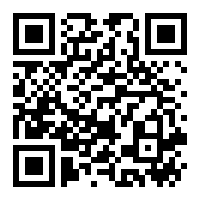
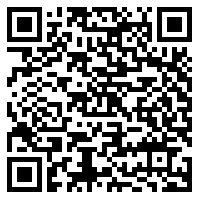
To download the Duo application for Apple and Android devices, please follow the links to the respective app stores (NOTE: These links best used on the device you want to install Duo on!)

Click

APPLE APP
ANDROID APP


Or Scan


**NOTE: Download the DUO App to Your Phone or Tablet Before Attempting Setup Process.**
The setup process works best when accessing student email from a Windows PC or Mac separate from the mobile device.

Duo-Documentation-doc

You can download the PDF here:

Multi-Factor Instructions .pdf


Self-Enrollment Process Screenshots:

NOTE: These screenshots are what you will see when logging into your email on a PC and going through Duo Setup.

We advise students to login to their email on a PC so that when prompted to setup Duo they are able to scan the QR Code for the easiest possible setup.

Step 1 Image

Step 1: Select Start Setup

Step 2 Image

Step 2: Select Device to be Added

NOTE: You must select “Tablet” even if you are using a mobile phone or the setup will fail!

Step 3 Image

Step 3: Select Device Operating System

Step 4 Image

Step 4: Install Duo Mobile from App Store

Step 5 Image

Step 5: Activate Duo Mobile

Step 6 Image

Step 6: Select Settings Preferences and Continue to Login

Step 7 Image

Step 7: Select

If you need assistance
– For immediate assistance, call (844)-292-2313 for 24/7 helpdesk support
– Submit a helpdesk ticket from the Student Portal page https://www.asumidsouth.edu/student-portal/ Access Helpdesk

How It Workshttp://www.asub.edu/images/its/multi-factor-example.png

1.     Enter username and password as usual

2.     Use your phone to verify your identity (fobs available through ITS at no charge)

3.     Securely logged in

Once you’ve enrolled in Duo you’re ready to go: You’ll login as usual with your username and password, and then use your device to verify that it’s you.

No mobile phone? 

You can also use tablet, or ask for a fob. Duo lets you link multiple devices to your account, so you can use your mobile phone and a fob, two different mobile devices, etc.

No longer have the phone you signed up with?

If you need assistance
– For immediate assistance, call (844)-292-2313 for 24/7 helpdesk support
– Submit a helpdesk ticket from the Student Portal page https://www.asumidsouth.edu/student-portal/ Access Helpdesk

STUDENTS

Academic Calendar

Campus Map

Catalog

Schedule of Classes

Online Application

Contact Us

Transcript Request

My Canvas

FIND IT FAST

Financial Aid

Facilities Use

Foundation

Title IX

Freedom of Expression

HEERF

Fiscal Accountability & Transparency

Report Abuse or Fraud

EMPLOYEE INFO

ASU System

Employment Opportunities

Employee Directory

Employee Email

Faculty Senate

Human Resources

Legal/Computer Use

Employee Resources

CONTACT US

ASU Mid-South

2000 West Broadway

West Memphis, AR 72301

Main – 870.733.6722
Admissions – 870.733.6728
Financial Aid – 870.733.6729
Toll Free – 866.733.6722

Contact Us Page

Copyright © 2025 *** ASU Mid-South | Mission Statement

Open toolbar Accessibility Tools

Accessibility Tools

  • Increase TextIncrease Text
  • Decrease TextDecrease Text
  • GrayscaleGrayscale
  • High ContrastHigh Contrast
  • Negative ContrastNegative Contrast
  • Light BackgroundLight Background
  • Links UnderlineLinks Underline
  • Readable FontReadable Font
  • Reset Reset